
Google Search Console in SiteSkite puts search performance inside every linked WordPress site—clicks, impressions, CTR, average position, top queries, and SEO quick wins—so you can spot ranking slips before a client does, without switching Google accounts or exporting spreadsheets.
Why it matters
Rankings usually slide quietly. Without regular Search Console checks, you hear about lost clicks from the client—not your dashboard. SiteSkite keeps search data next to the updates, backups, and fixes that may have caused a change, so maintainers can prove impact, not just activity.
Catch money pages drifting off page one before traffic falls off a cliff
Surface page-two queries with real impression volume (cheap traffic wins)
Review every site from one portal instead of juggling Google accounts
Put search growth into white-label client reports automatically
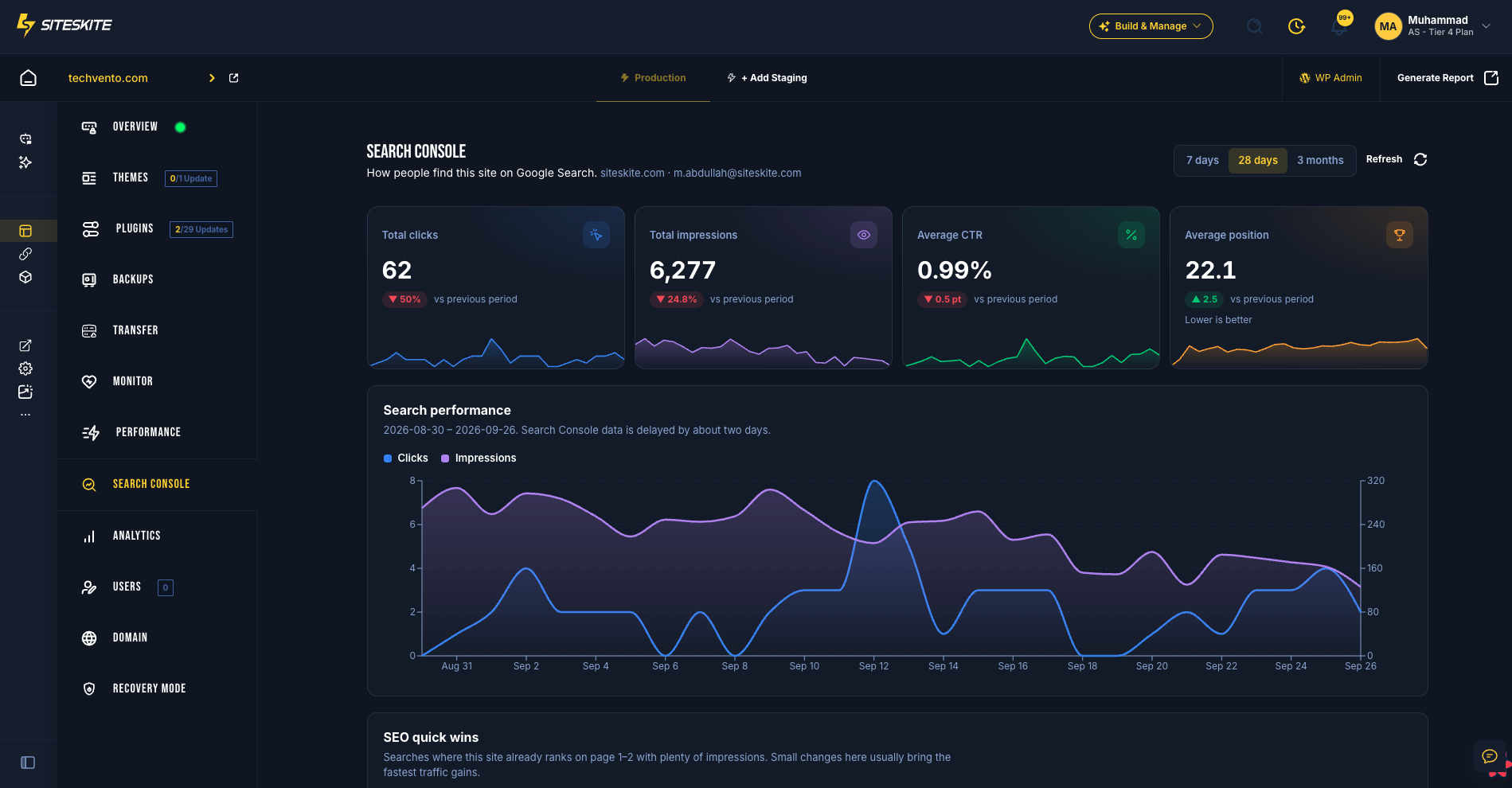
What you see in the Search Console tab
Four KPIs with trends — total clicks, impressions, average CTR, and average position (each vs the previous period). Position is lower-is-better, so green always means good.
Search performance chart — clicks and impressions day by day for 7 days, 28 days, or 3 months
SEO quick wins — queries already ranking in positions 4–20 with above-average impressions, labelled “Push to page 1” or “Improve title & description”, plus estimated extra clicks
Top queries and top pages — what drives clicks, with CTR and average position; sortable in place
Countries and devices — which markets and devices carry search traffic
How to connect
No Google Cloud project, no API keys, and no extra plugin on the client site. SiteSkite uses Google’s official Search Console API with read-only access.
Open any linked WordPress site in SiteSkite and select the Search Console tab.
Sign in with Google and approve read-only access. One connection covers Search Console and Google Analytics.
Pick the property (domain or URL-prefix) that matches the site. If a GA4 property matches the same domain, SiteSkite links it automatically.
Optionally add the Search Console section to a report profile so client PDFs include search data. Sites without Search Console connected are skipped automatically.
You can also manage Google accounts from Integrations in the sidebar. Multiple Google accounts are supported; each site points at its own property.
Using it day to day
Pick a date range (7 / 28 / 3 months) and compare trends vs the previous period
Start from SEO quick wins when you need a prioritized SEO task for the retainer
Line a traffic drop up with a deploy or update from the same site view
Use Change property or Disconnect in the tab when you need to switch or unlink a site
Plans and data freshness
Included on every paid plan (Advanced, Growth, Professional, Agency) and lifetime deal plans — not on Free
Google Search Console data is typically delayed by about two days
SiteSkite caches reports for up to six hours for speed; use Refresh to fetch the latest on demand
Privacy and access
Read-only Search Console access — SiteSkite cannot change properties, sitemaps, or settings
OAuth tokens encrypted at rest; your Google password never touches SiteSkite
Used only for your dashboards and reports — never sold or used to train AI models
Disconnect a site in the tab, or remove the Google account on Integrations (or revoke access in your Google Account)
Related guides
Reports in SiteSkite — include Search Console in client PDFs