
The launch page is what visitors see before they get their own sandbox. Match it to your brand with layout, colors, highlights, and screenshots.
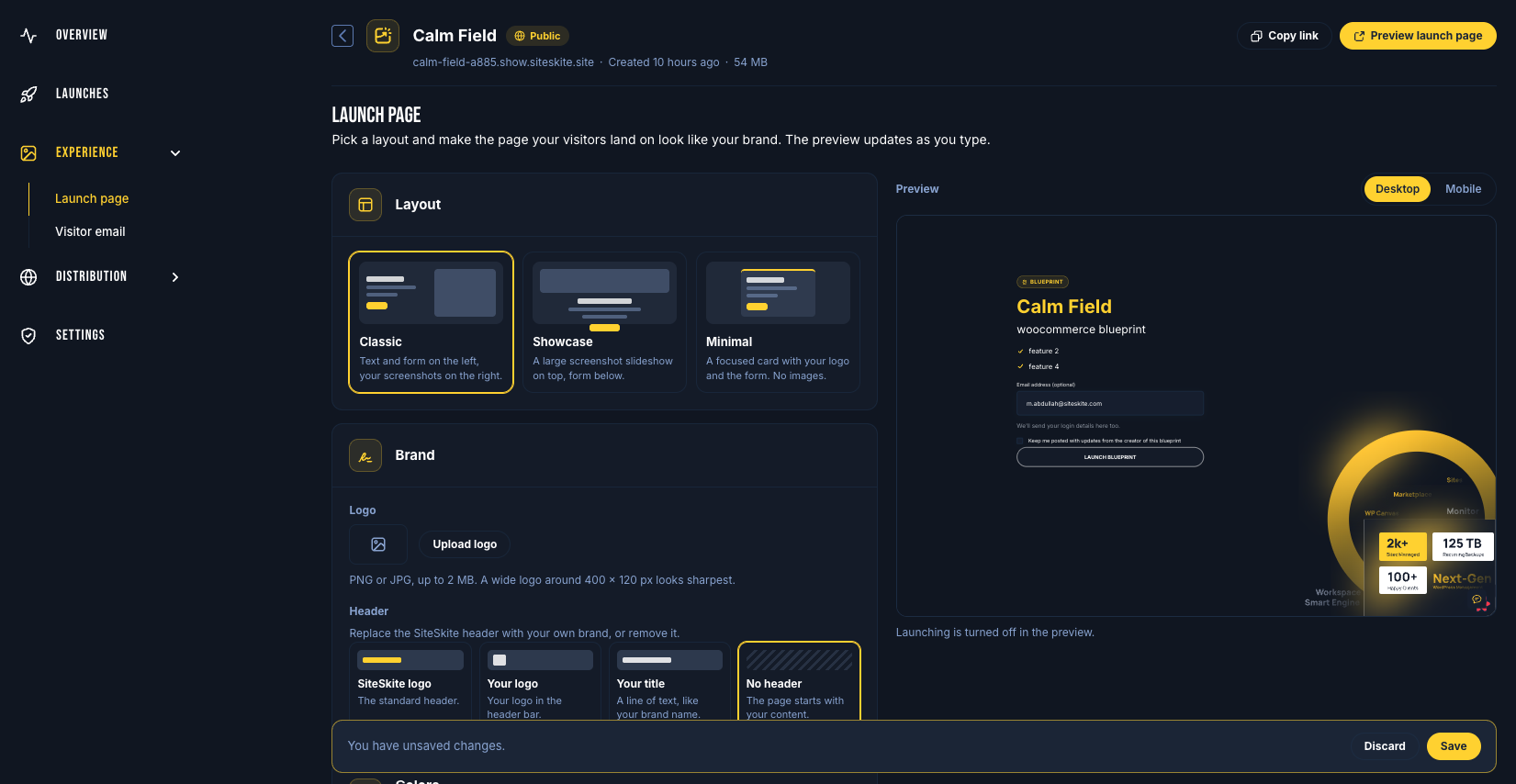
Open the Launch page editor
Go to Blueprints and open a blueprint
Under Experience, open Launch page
Use Preview launch page or Copy link from the header when the package is ready.
Layout
Choose one of:
Classic
Showcase
Minimal (no screenshot gallery)
Brand
Upload a logo (PNG or JPG, up to 2 MB)
Set the header to SiteSkite logo, your logo, your title, or no header
Custom headers (your logo / title / none) need white label on your plan.
Colors and text
Start from a colour theme, then adjust page, header, surface, heading, text, brand, and button colours
Edit the headline and button text
Add up to six highlights (features)
Screenshot gallery
On Classic and Showcase layouts, add up to eight images with captions. The live preview updates as you edit (desktop and mobile).
Visitor email on the same journey
Under Visitor email, configure the launch form:
Email and name: Off, Optional, or Required
Block disposable inboxes, require a 6-digit code, and limit one sandbox per email
Consent checkbox and privacy link (needed for Mailchimp opt-in)
Login email content, including sending from your own verified domain when white label is enabled
Share the page
On Share & embed:
Copy the launch link
Create tracked links with Source and optional Campaign
Generate button HTML for your site or docs
Private blueprints only launch for signed-in users—switch to Public in settings if you want an open demo.
Custom domain
On Custom domain (white label), choose SiteSkite’s default or a verified subdomain you own so launched sandboxes use your hostname.