
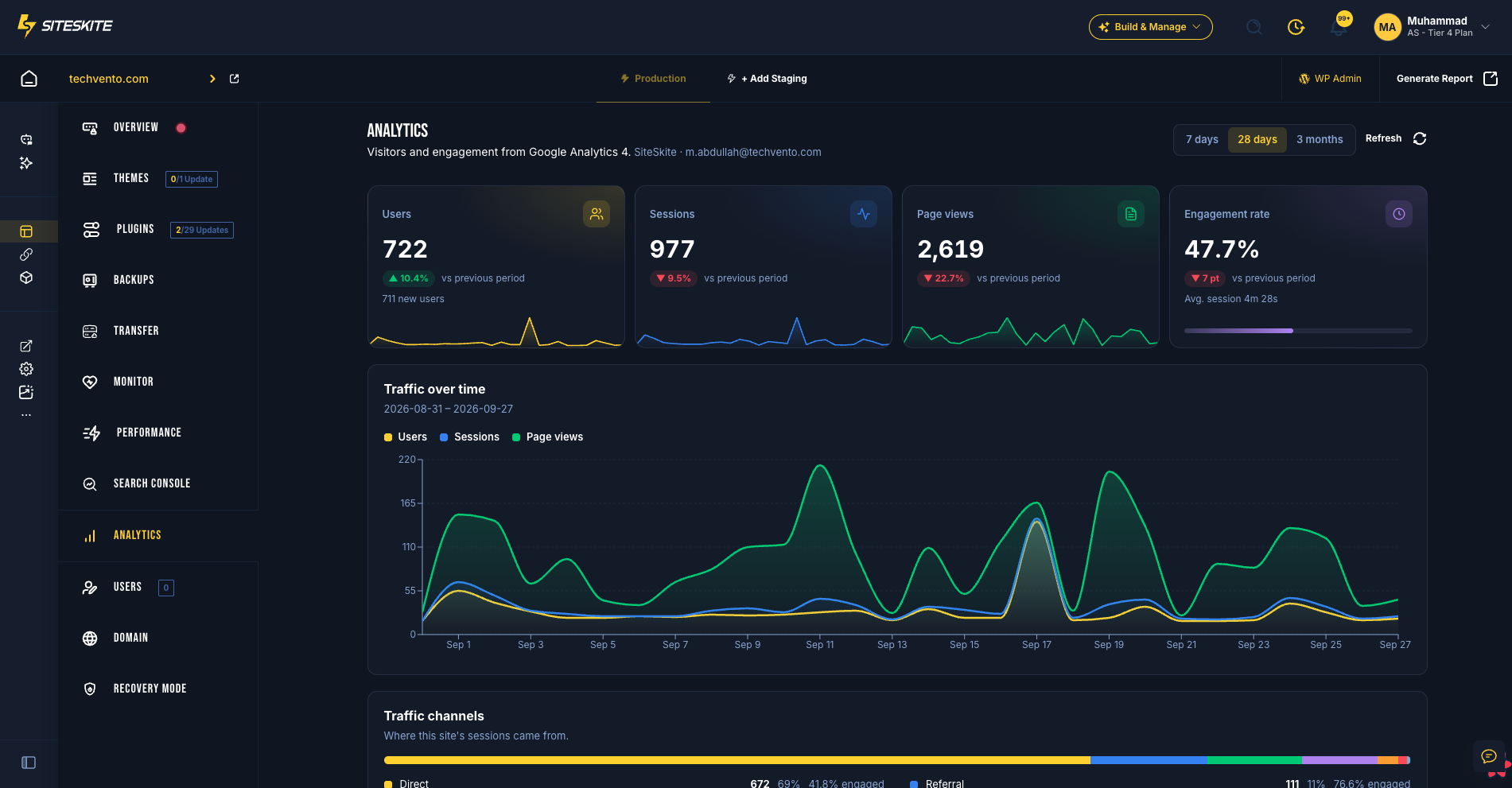
Google Analytics 4 in SiteSkite brings users, sessions, page views, engagement, traffic channels, and top pages into every linked WordPress site—right beside the updates, backups, and fixes that moved those numbers. One Google sign-in covers your portfolio; you never have to dig through GA4 menus per client.
Why it matters
Clients renew when they see the site growing—not when they see a list of plugin versions. GA4 alone is easy to postpone; by the time someone opens it, a channel may have dried up for weeks. SiteSkite puts the numbers clients already ask for next to the work you did, so you can answer “is the website working?” in minutes.
Show traffic and engagement next to maintenance activity
Spot dips after an update without building GA4 explorations
See which channel is carrying the site (and which one stopped)
Fill white-label reports with Analytics automatically each period
What you see in the Analytics tab
Four KPIs with trends — users (with new users), sessions, page views, and engagement rate (with average session duration), each vs the previous period
Traffic over time — users, sessions, and page views day by day for 7 days, 28 days, or 3 months (key events when the property tracks them)
Traffic channels — Direct, organic search, referral, social, and more, with share of sessions and engagement rate per channel
Top pages — most-viewed pages with users and average session time
Sources, countries, and devices — source/medium, top countries, and device split, sortable in place
How to connect
SiteSkite reads your existing GA4 property. It does not add tracking code, change tags, or ask you to create credentials. Keep Site Kit, Tag Manager, or your existing tag as-is.
Open any linked WordPress site in SiteSkite and select the Analytics tab.
Sign in with Google and approve read-only access. One connection covers Google Analytics and Search Console.
Pick the GA4 property for the site. If a Search Console property matches the same domain, SiteSkite links it automatically.
Optionally add the Analytics section to a report profile. Sites without Google Analytics connected are skipped automatically.
Manage Google accounts from Integrations in the sidebar. Multiple Google accounts are supported; each site can use its own property.
Using it day to day
Compare 7-day, 28-day, and 3-month windows when a client asks about leads or traffic
Check channel mix first when volume drops—often one source stopped, not the whole site
Drill into source and medium when a channel changes
Use Change property or Disconnect in the tab to switch or unlink a site
Plans and compatibility
Included on every paid plan (Advanced, Growth, Professional, Agency) and lifetime deal plans — not on Free
GA4 only — Universal Analytics is retired and not supported
SiteSkite does not install or replace your tracking code
Privacy and access
Read-only Analytics access — SiteSkite cannot edit properties, streams, users, or settings
OAuth tokens encrypted at rest; your Google password never touches SiteSkite
Used only for your dashboards and reports — never sold or used to train AI models
Disconnect a site in the tab, or remove the Google account on Integrations (or revoke access in your Google Account)
Related guides
Reports in SiteSkite — include Analytics in client PDFs