
The Site Recovery Mode feature in SiteSkite is designed to help you regain control of your WordPress website when it becomes inaccessible due to fatal errors, plugin conflicts, theme issues, or code problems.
When WordPress crashes, the admin dashboard may stop loading and the REST API can become unavailable. In these situations, SiteSkite Recovery Mode provides a safe emergency access layer so you can restore functionality and bring the site back online.
This feature is especially useful for agencies and developers managing multiple production websites.
What is Site Recovery Mode?
Site Recovery Mode temporarily restores access to a broken WordPress installation so recovery actions can be performed.
Instead of requiring FTP access, hosting login, or manual file editing, SiteSkite allows you to recover the site directly from the SiteSkite portal.
Recovery Mode acts as a controlled bridge that keeps communication with the site alive even when WordPress is partially broken.
When Should You Use Recovery Mode?
You should enable Recovery Mode when your site experiences issues such as:
WordPress white screen of death
HTTP 500 internal server error
A plugin update breaking the site
A theme update causing fatal errors
A PHP syntax error
wp-admin not loading
SiteSkite losing connection to the site
REST API endpoints failing
Recovery Mode helps restore access so you can fix the issue quickly.
What Recovery Mode Allows You To Do
Once Recovery Mode is enabled, you can safely perform recovery actions such as:
Disable problematic plugins
Roll back plugin updates
Roll back theme updates
Restore the site from a backup
Reconnect the site to SiteSkite
Fix configuration issues
Investigate fatal errors
All of these actions can be done without accessing hosting panels or FTP.
What Recovery Mode Does NOT Do
Recovery Mode is a recovery tool, not an automatic repair system.
It does not:
Automatically restore backups
Permanently modify your website configuration
Fix hosting server outages
Bypass WordPress security permissions
It simply restores minimal access so you can perform the necessary fixes.
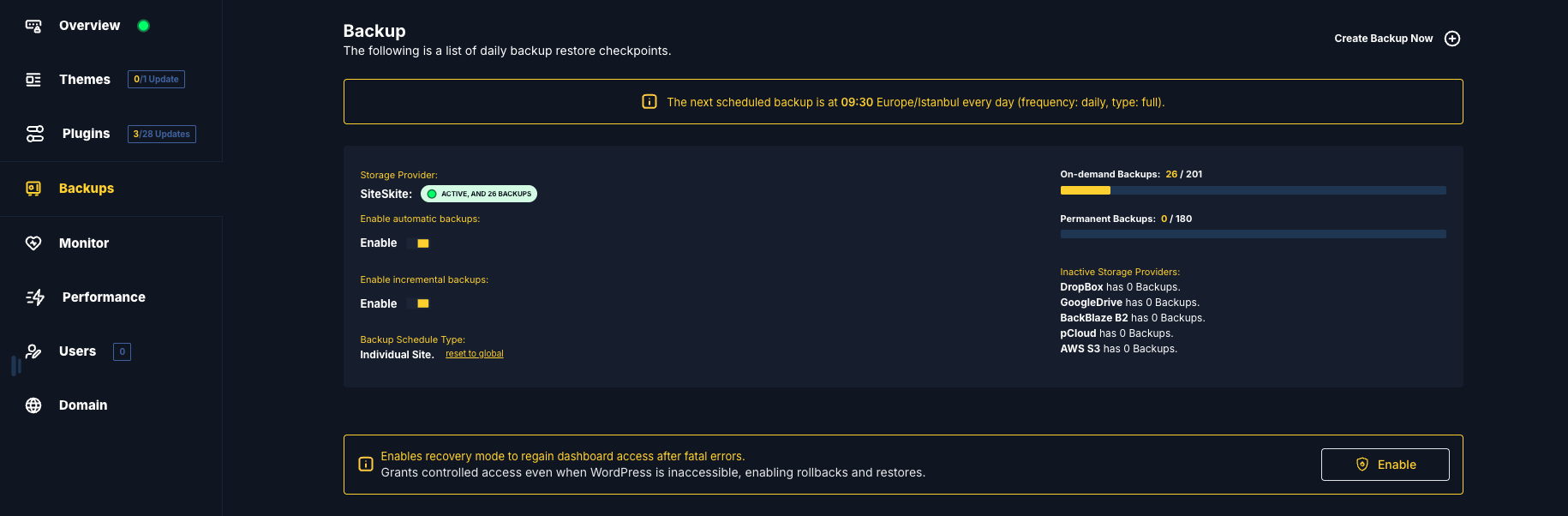
How to Enable Recovery Mode
To enable Recovery Mode:
Log in to the SiteSkite Portal
Select the Linked Site
Navigate to Backups
Locate the Site Recovery Mode section
Click the Enable button
Once enabled, SiteSkite will activate the recovery layer on the website.
This restores controlled access to the site so recovery actions can begin.
How Recovery Mode Works
At a high level, the recovery process works like this:
SiteSkite detects that the site is unreachable or broken
You enable Recovery Mode from the portal
SiteSkite activates a lightweight recovery layer
WordPress access is temporarily restored
You perform rollback, plugin disable, or restore actions
Recovery Mode is disabled once the site is stable again
This process minimizes downtime and prevents emergency fixes.
Benefits of Using Site Recovery Mode
Recovery Mode provides several advantages for developers and agencies.
Faster Incident Resolution
Fix site failures without waiting for hosting support.
No FTP or Hosting Access Required
Recover the site directly from the SiteSkite portal.
Reduced Downtime
Restore access quickly and resolve issues before visitors are affected.
Safe Recovery Environment
Perform fixes without risking further damage to the site.
Ideal for Agencies
Manage multiple sites and recover them quickly during incidents.
Security and Safety
Site Recovery Mode is designed with safety in mind.
Access is temporary and controlled
Only authorized SiteSkite actions are allowed
Recovery sessions can be logged for auditing
The feature does not bypass WordPress security roles
Once recovery is complete, normal site behavior resumes.
Best Practices
To use Recovery Mode effectively:
Always keep recent backups available
Use Recovery Mode immediately after a fatal error occurs
Fix one issue at a time during recovery
Disable Recovery Mode once the site becomes stable
Test major updates in Sandbox environments when possible
Summary
The SiteSkite Site Recovery Mode feature ensures that a broken WordPress site is never a dead end. By restoring minimal access when WordPress crashes, it allows you to quickly disable problematic plugins, roll back changes, or restore backups without needing server-level access.
This makes Recovery Mode a critical safety tool for developers, agencies, and businesses managing production WordPress websites.