
The Clone Site from Backup feature in SiteSkite allows you to create a fully functional replica of your website using an existing backup. This cloned version runs in an isolated environment so you can safely inspect, test, or troubleshoot the site without affecting the original production website.
Cloning from a backup is especially useful when you need to review historical site states, debug issues, or test updates before applying them to your live site.
What Does “Clone Site from Backup” Do?
When you use this feature, SiteSkite:
Takes a selected backup restore point
Recreates the entire website environment
Launches it as a separate sandbox instance
Keeps the original site untouched
The clone includes:
WordPress files
Themes and plugins
Database content
Media library
Site configuration
This ensures the cloned site is an exact working replica of the backup.
Why Use Clone from Backup
Cloning from backup helps solve many real-world problems without risking your production website.
Safe Testing Environment
Test plugin updates, theme changes, or new features on a clone before applying them to the live site.
Troubleshooting Issues
Investigate bugs or fatal errors using a replica of the affected site state.
Review Historical Site Versions
Launch an earlier backup to review how the website looked or behaved at a specific time.
Validate Fixes
Apply fixes on the cloned version first to confirm they work correctly.
Agency Workflow
Agencies can reproduce client issues or demonstrate fixes without interrupting the live website.
How to Clone a Site from Backup
Follow these steps inside SiteSkite:
Log in to the SiteSkite Portal
Select your Linked Site
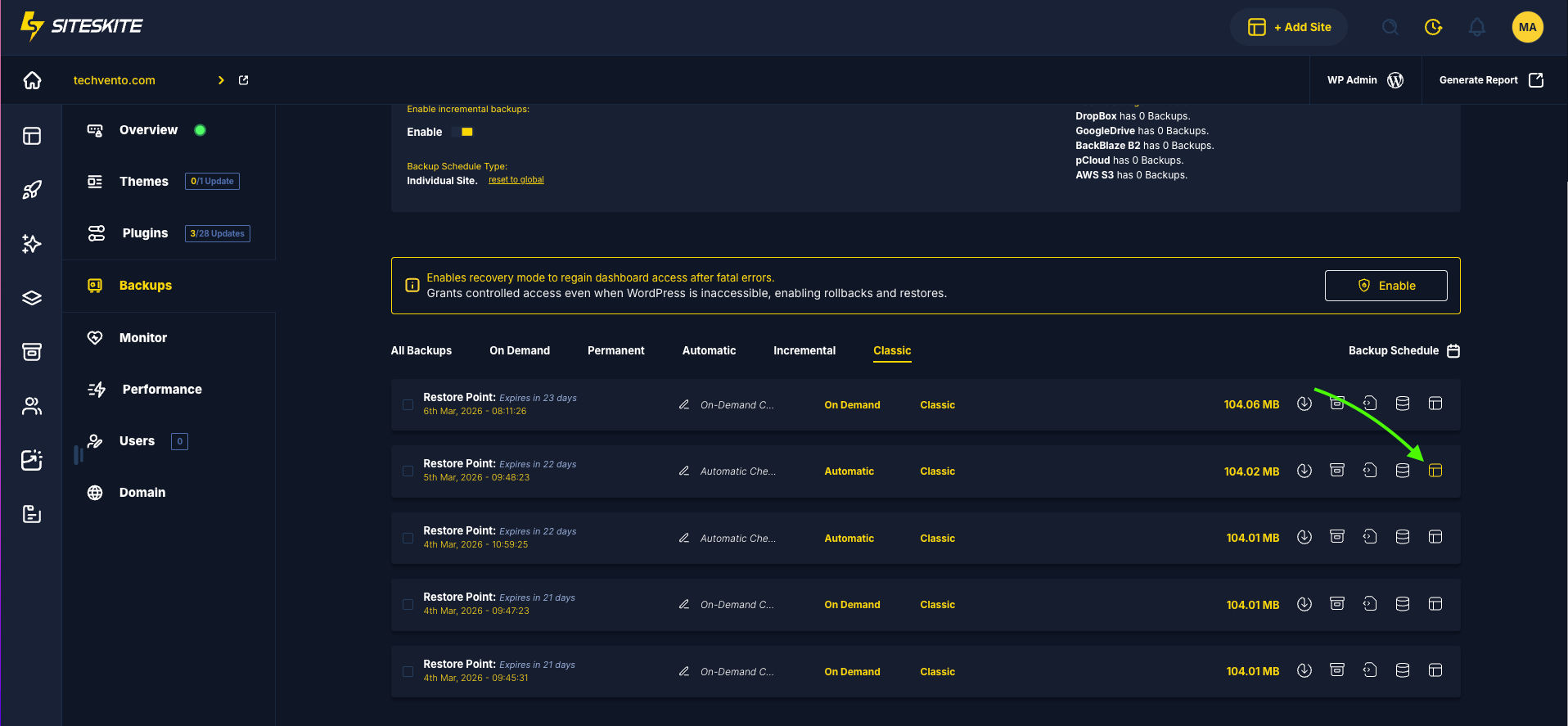
Navigate to the Backups section
Locate the backup restore point you want to use
Click the Clone icon next to the backup entry
SiteSkite will begin creating the clone environment
Once completed, the cloned site will be available as a sandbox site.
Where the Cloned Site Appears
All sites created using the Clone from Backup feature appear inside the Sandbox Sites environment.
From there you can:
Access the WordPress dashboard
Test updates or changes
Inspect the site state
Debug errors
Remove the clone when finished
Sandbox clones are isolated and do not interact with the production website.
Common Use Cases
Plugin or Theme Conflict Testing
Clone a backup before performing updates to see if conflicts occur.
Debugging Production Errors
Recreate the site environment where the error occurred.
Pre-Deployment Validation
Confirm fixes before applying them to the live site.
Security Incident Review
Analyze a compromised or broken version safely.
Client Demonstrations
Show changes or features without modifying the real site.
Important Notes
Cloned sites are created in a sandbox environment.
The production website remains completely unaffected.
Clone site feature is currently supported Classic backup snapshots
Clones can be deleted at any time once testing is complete.
Backup availability depends on your backup retention settings.
Best Practices
Clone the most recent backup when troubleshooting current issues.
Use clones before performing major plugin or theme updates.
Keep your backup schedule active to ensure recent restore points are available.
Delete unused clones to keep your sandbox environment organized.
Summary
The Clone Site from Backup feature allows you to instantly launch a fully functional copy of your website from any backup restore point. This provides a safe environment for testing, debugging, and validation while ensuring your live site remains stable and uninterrupted.