
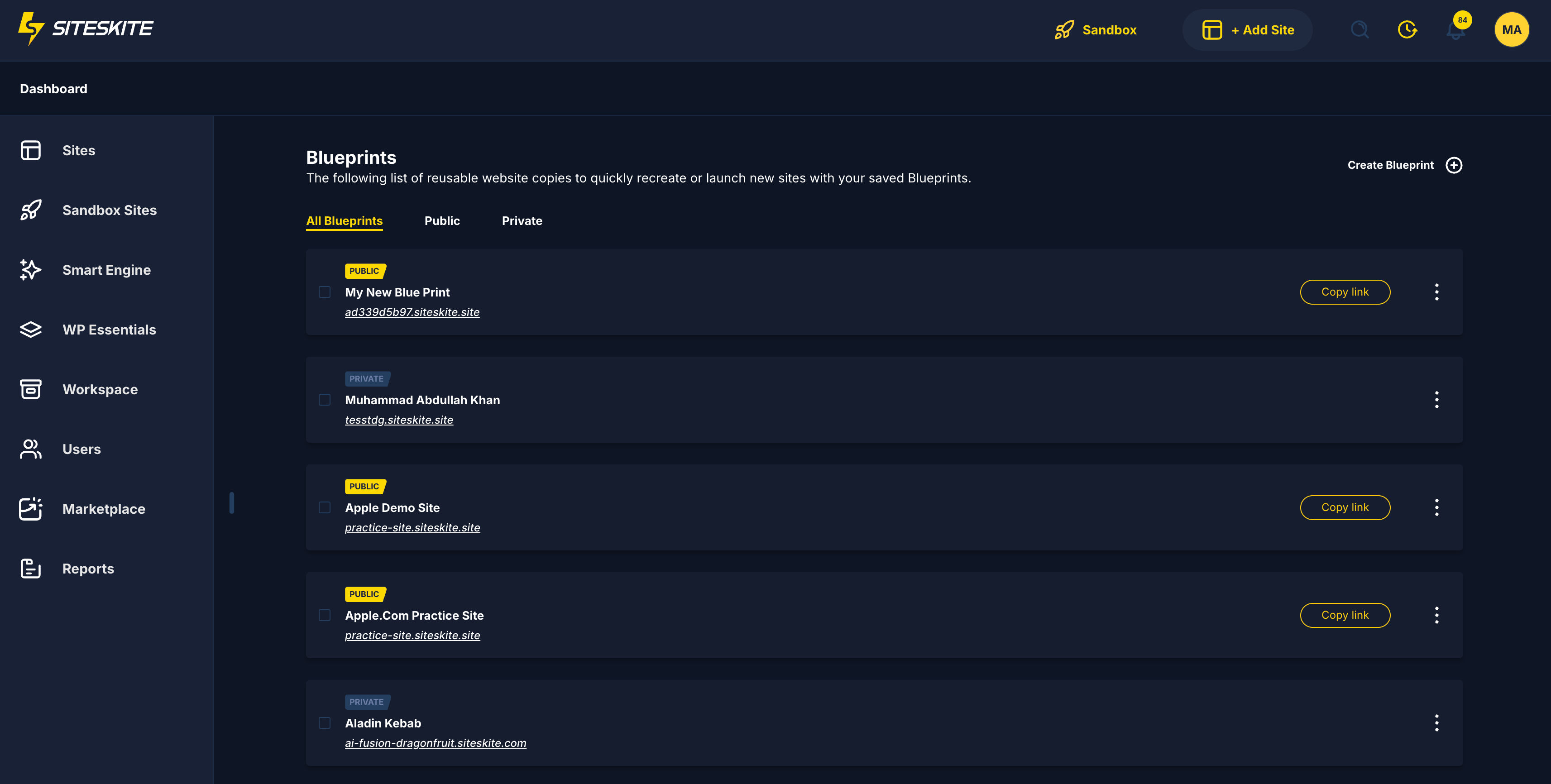
A Blueprint is a reusable website template created from a Sandbox site.
Once saved, the blueprint can be launched as a brand-new Sandbox website in seconds.
Each launch creates:
A fresh WordPress installation
With the same theme, plugins, and demo setup
Isolated from previous launches
Safe to test, modify, and discard
Think of a blueprint as a golden snapshot of a perfect setup.
Key Capabilities of Blueprints
🚀 Launch a complete WordPress site instantly
🧪 Unlimited testing with zero risk
🔁 Reuse the same setup multiple times
🔐 Keep blueprints private or make them public
🔗 Share a public blueprint link with anyone
🏗 Ideal for demos, trials, onboarding, and testing
Public vs Private Blueprints
Private Blueprint
Only accessible by you
Used for internal testing or personal workflows
Perfect for freelancers saving a preferred setup
Public Blueprint
Shareable via a unique URL
Anyone opening the link gets a fresh Sandbox site
-
Ideal for:
Plugin/theme demos
Agency client previews
Product trials
Educational or onboarding use
Each launch from a public blueprint is independent and temporary.
How to Access Blueprints
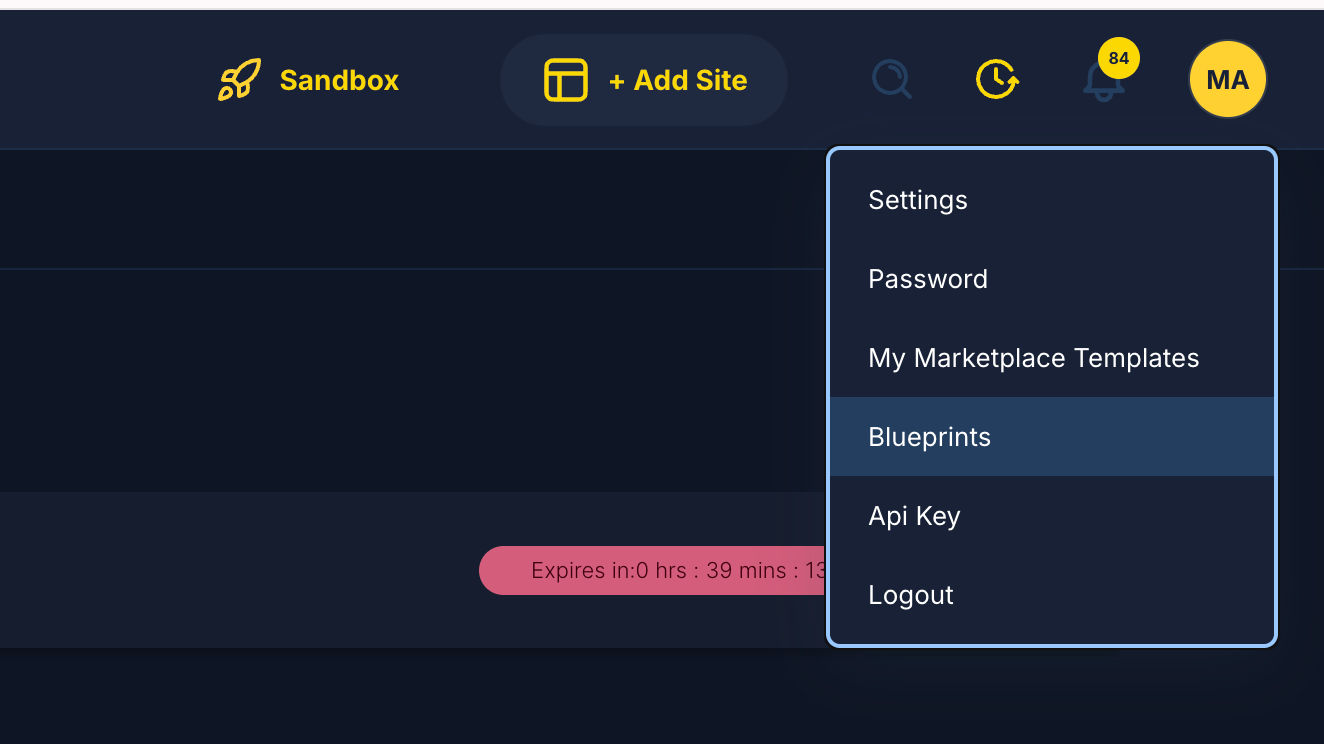
Log in to your SiteSkite Portal
Click your Profile icon (top-right)
Select Blueprints from the dropdown menu
This opens the Blueprints dashboard, where all your public and private blueprints are listed.
How to Create a Blueprint
Step 1: Prepare a Sandbox Site
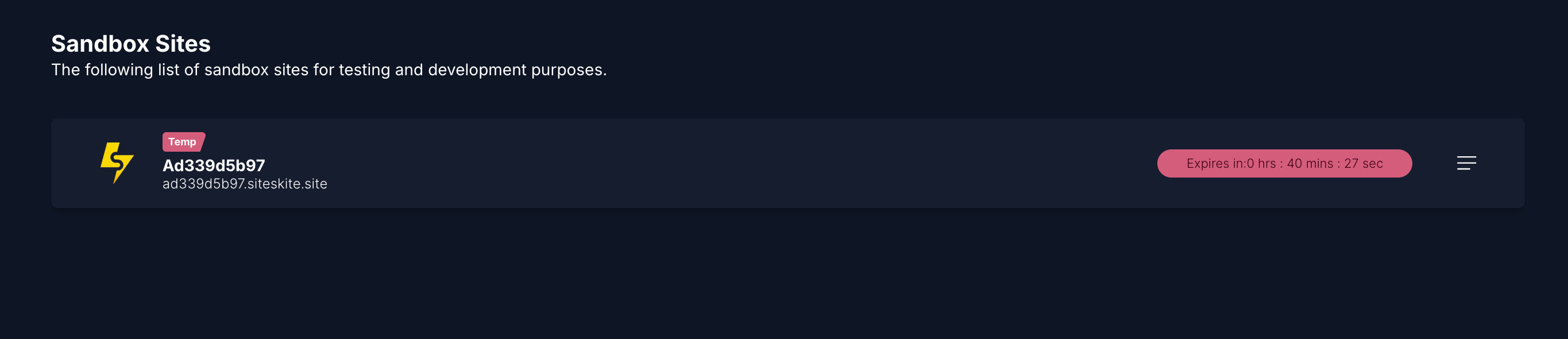
Create a Sandbox site
-
Install and configure:
Theme
Plugins
Demo content
Settings
This Sandbox will become your blueprint source.
Step 2: Create Blueprint
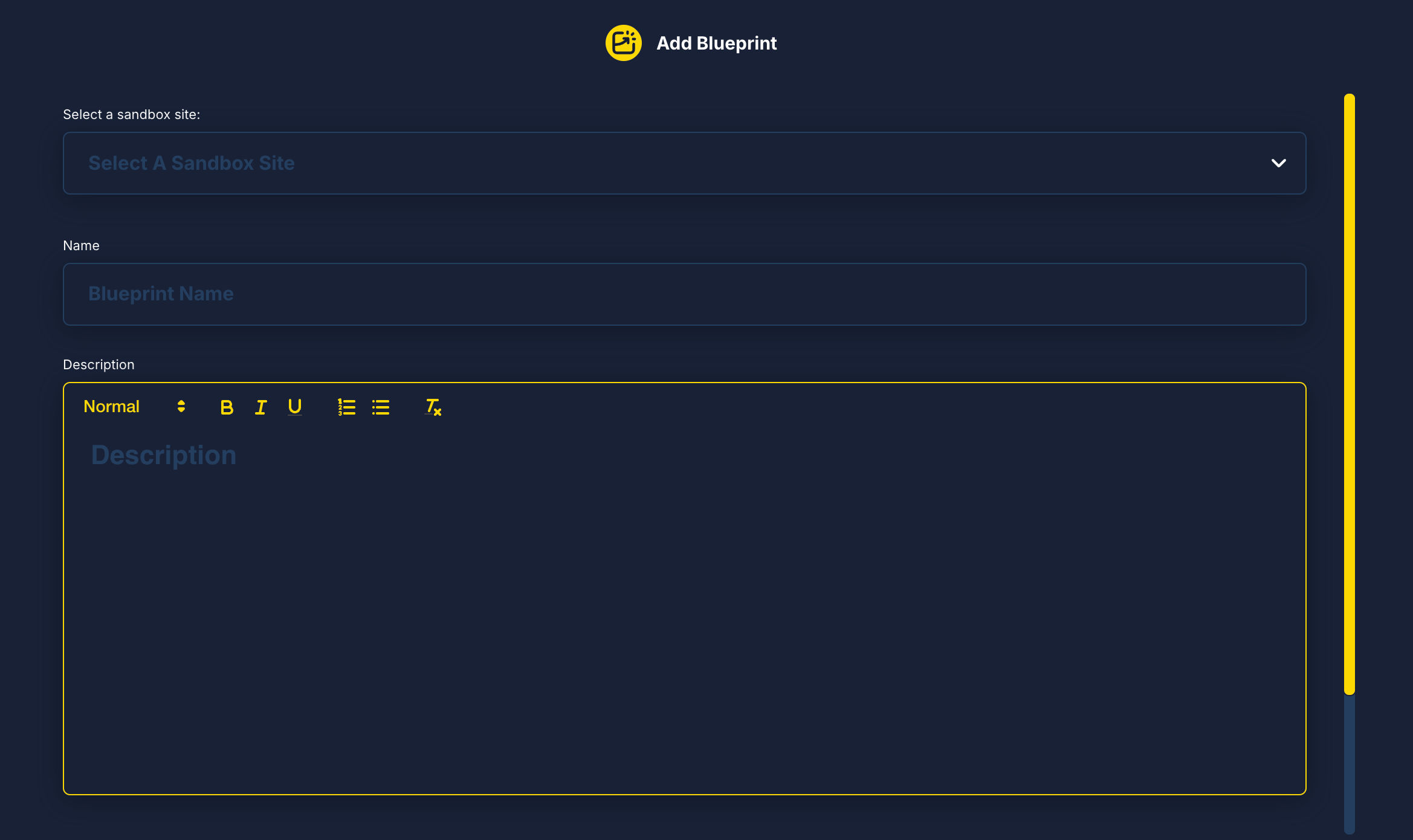
Go to Blueprints
Click Create Blueprint
Select the Sandbox site
-
Enter:
Blueprint name
Description (rich text supported)
-
Choose blueprint type:
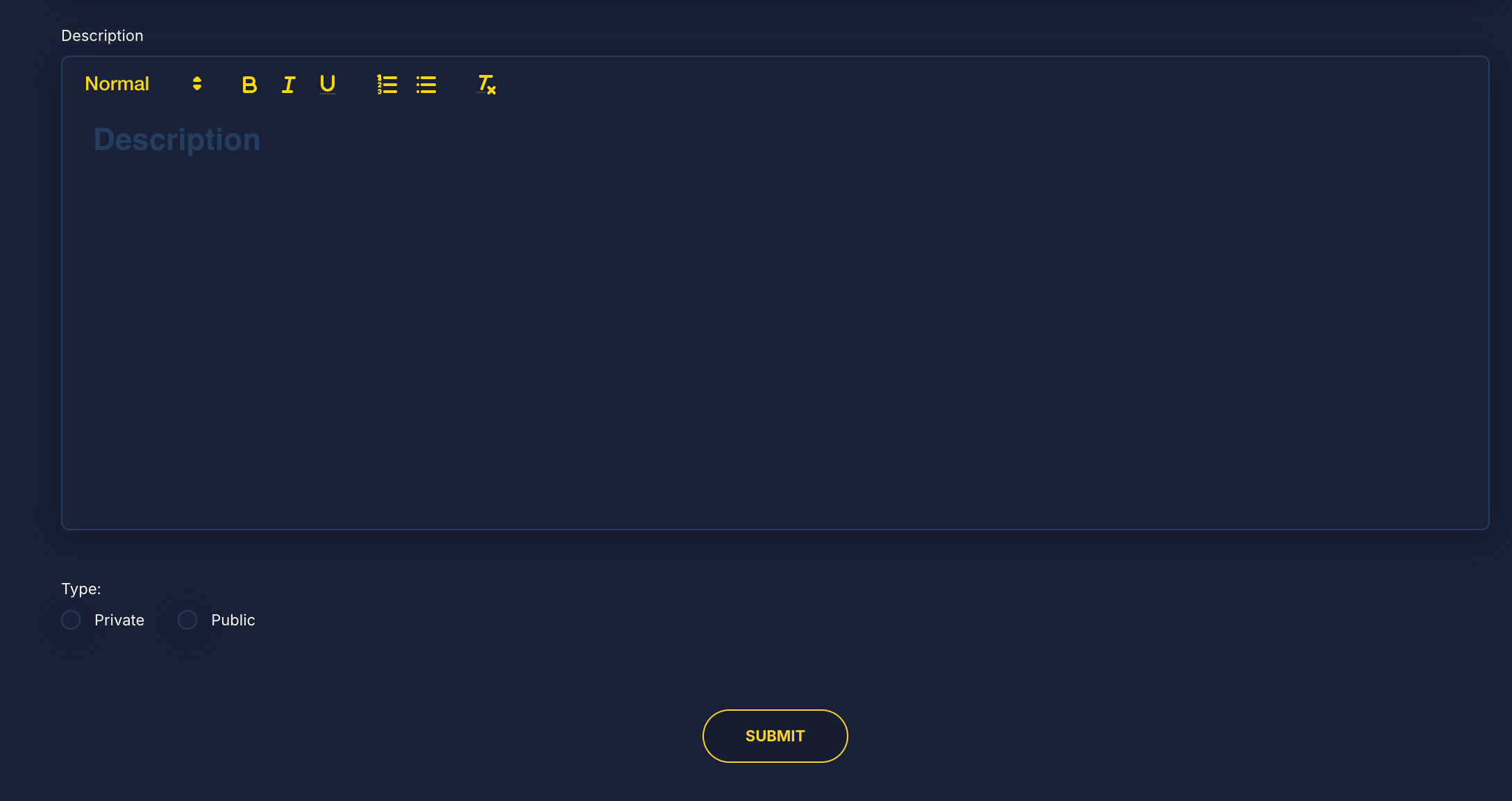
Private or Public
Click Submit
Your blueprint is now saved and ready to use.
Launching a Blueprint
Once created, you can:
Click the Blueprint URL (for public blueprints)
Or manually launch it from the Blueprints list
Each launch:
Creates a new Sandbox site
Appears in your Sandbox Sites environment
Has its own expiration timer
Can be logged into instantly
Where Do Blueprint Sites Live?
All sites created from blueprints are listed under:
Sandbox Sites
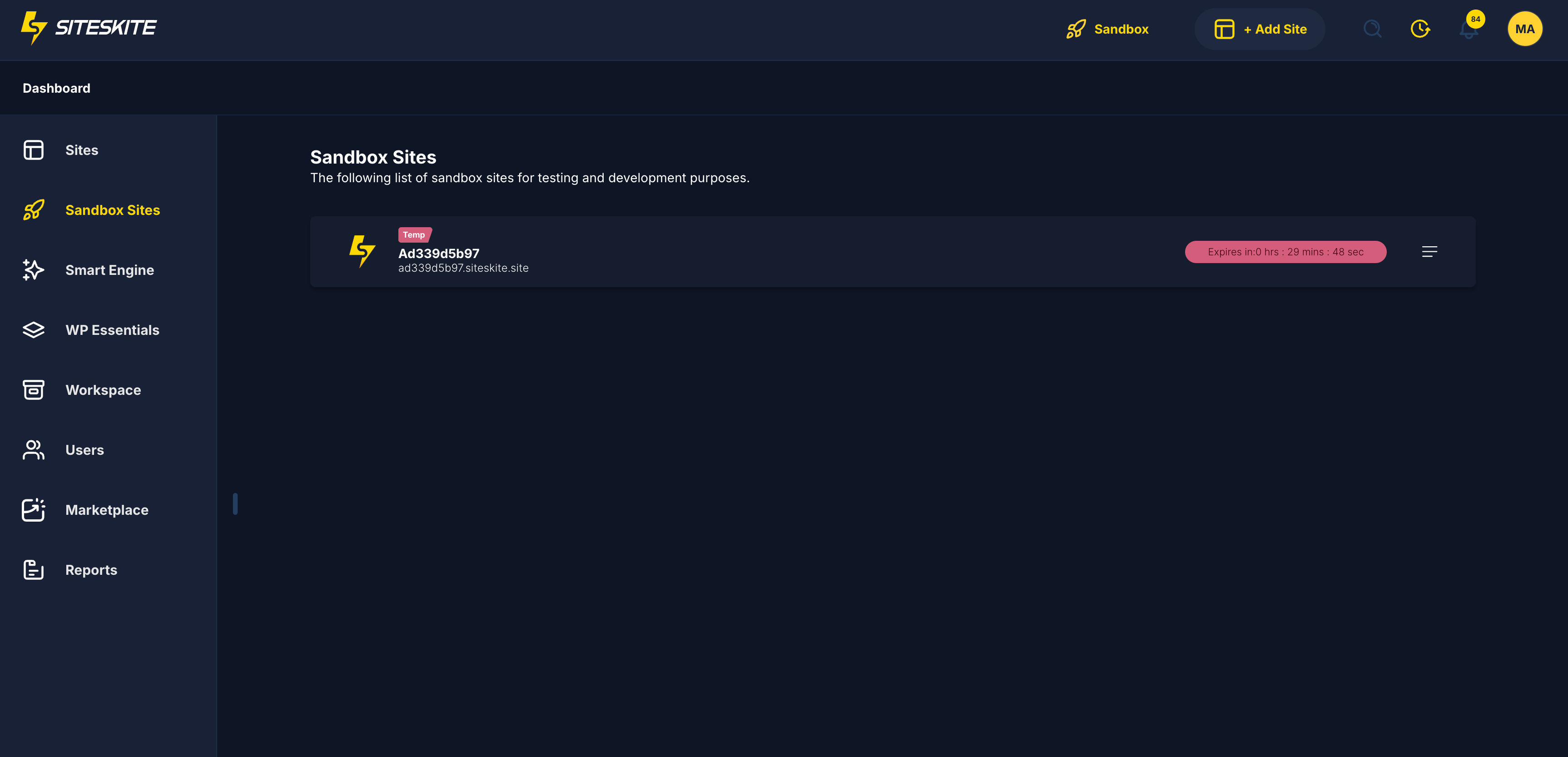
From there, you can:
Access WordPress Admin
Test plugins or themes
Monitor expiration time
Delete when done
Blueprint-based Sandboxes are clearly identifiable and isolated.
Common Use Cases
Agencies
Reuse a standard client setup
Share preview sites with clients
Demo services without touching production
Plugin & Theme Developers
Provide instant product trials
Let users test before buying
Share live demo links safely
Freelancers
Save a personal “starter site”
Launch test sites instantly
Avoid repetitive setup work
Educators
Provide WordPress training environments
Reset environments anytime
Important Notes
Blueprints are created only from Sandbox sites
Blueprint launches always create temporary Sandbox sites
Each launch is isolated and clean
Expired Sandbox sites are automatically removed
Editing a blueprint requires updating the source Sandbox and recreating the blueprint
Summary
SiteSkite Blueprints turn your perfectly configured WordPress site into a reusable, shareable, and instantly launchable experience. Whether you’re demonstrating a product, onboarding clients, testing ideas, or standardizing workflows, blueprints save time, reduce risk, and unlock powerful reuse.