
Use Blueprints to package a finished Sandbox into a reusable template you can launch again and again.
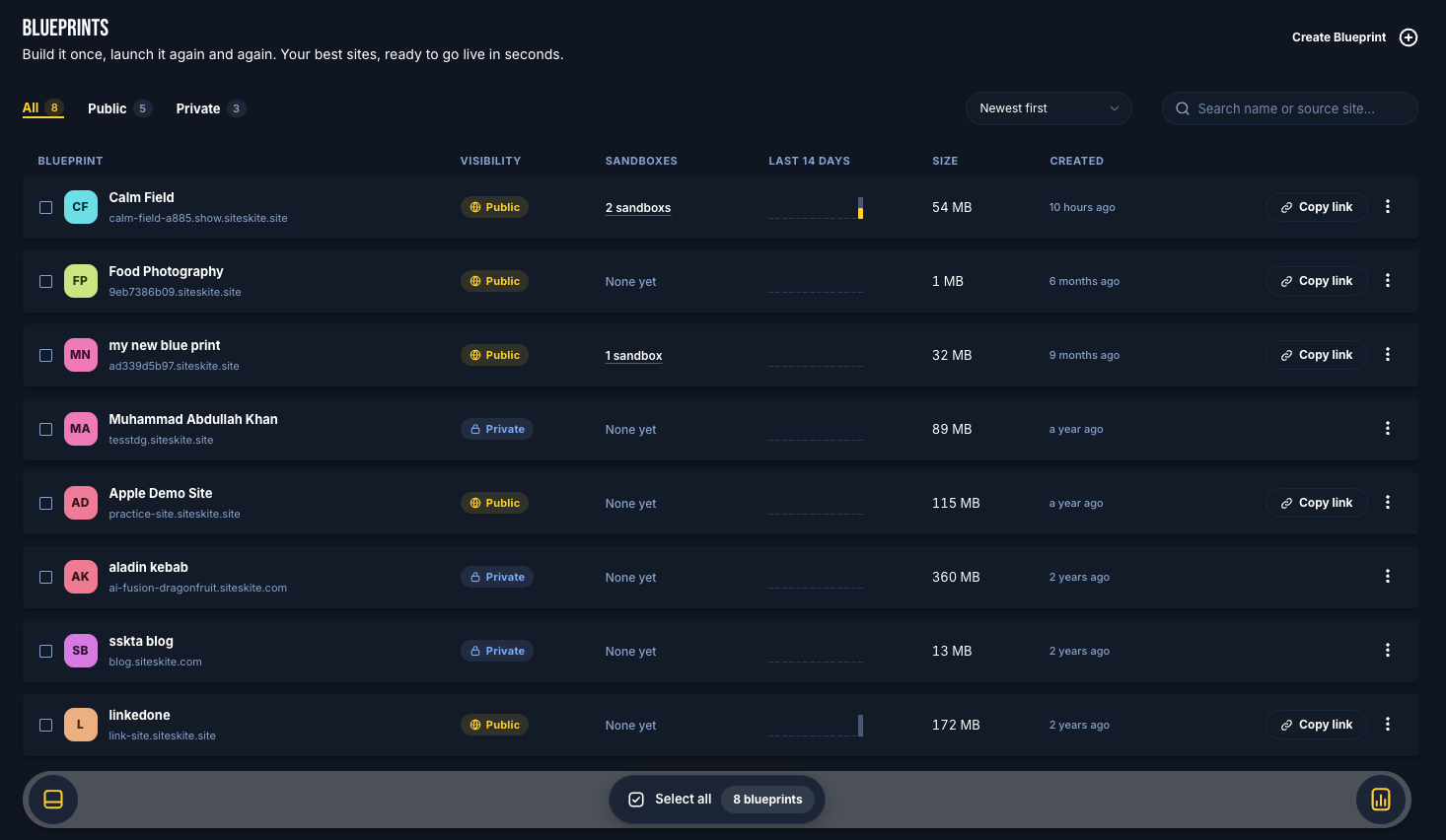
Open the Blueprints list
Log in to the SiteSkite Portal
Click Blueprints in the sidebar
The list shows each blueprint’s visibility, live sandboxes, recent activity, size, and created date. Use search when you have many blueprints.
Prepare the source Sandbox
Create or open a Sandbox site
Install the theme, plugins, demo content, and settings visitors should see
Blueprints are packaged from Sandbox sites only. Sandboxes still importing cannot be selected.
Create a Blueprint
On Blueprints, click Create (or create from a Sandbox / Save blueprint on site detail)
Select the Source sandbox
Enter a Name and Description
Choose Private or Public
Set Visitor email to Off, Optional, or Required
Submit
Your plan shows how many blueprints you have used (for example X of Y). Packaging may take a few minutes; Docker sandboxes usually finish faster than VPS.
While packaging
Preparing — wait until the package is ready; delete is blocked during this time
Packaging failed — open the row and click Retry
Ready — copy the link (public), open Insights, edit details, share & embed, or view sandboxes
Manage existing Blueprints
Edit details — name, description, and visibility
Insights — open Overview for that blueprint
Share & embed — launch link, tracked links, and button HTML (public + ready)
View sandboxes / Launches — sites created from this blueprint
Delete — removes the stored package and gallery images; existing launches keep running until they expire
Tips
Use Private for starters you only launch yourself; Public for demos and trials
You can change launch page, visitor email, and integrations after create
To refresh the WordPress content, update the source sandbox and create a new blueprint