
SiteSkite AI Chat can make live edits on linked WordPress sites when Edit with AI is enabled for that site. Ask the assistant to create or update pages, forms, templates, and other WordPress tools — without hopping between wp-admin screens for every change.
What live edit covers
With Edit with AI turned on for a linked site, AI Chat can help you:
Create and edit pages and content
Work with forms and templates
Use live WordPress tools exposed for that site
Optionally enable Advanced Power Tools when you need deeper site actions
You can still use SiteSkite Powered AI or your own BYO provider (including OpenRouter / Hermes) for the model behind the chat.
How to enable Edit with AI
Step 1: Open the linked site
Go to your linked sites list and open the site you want to edit
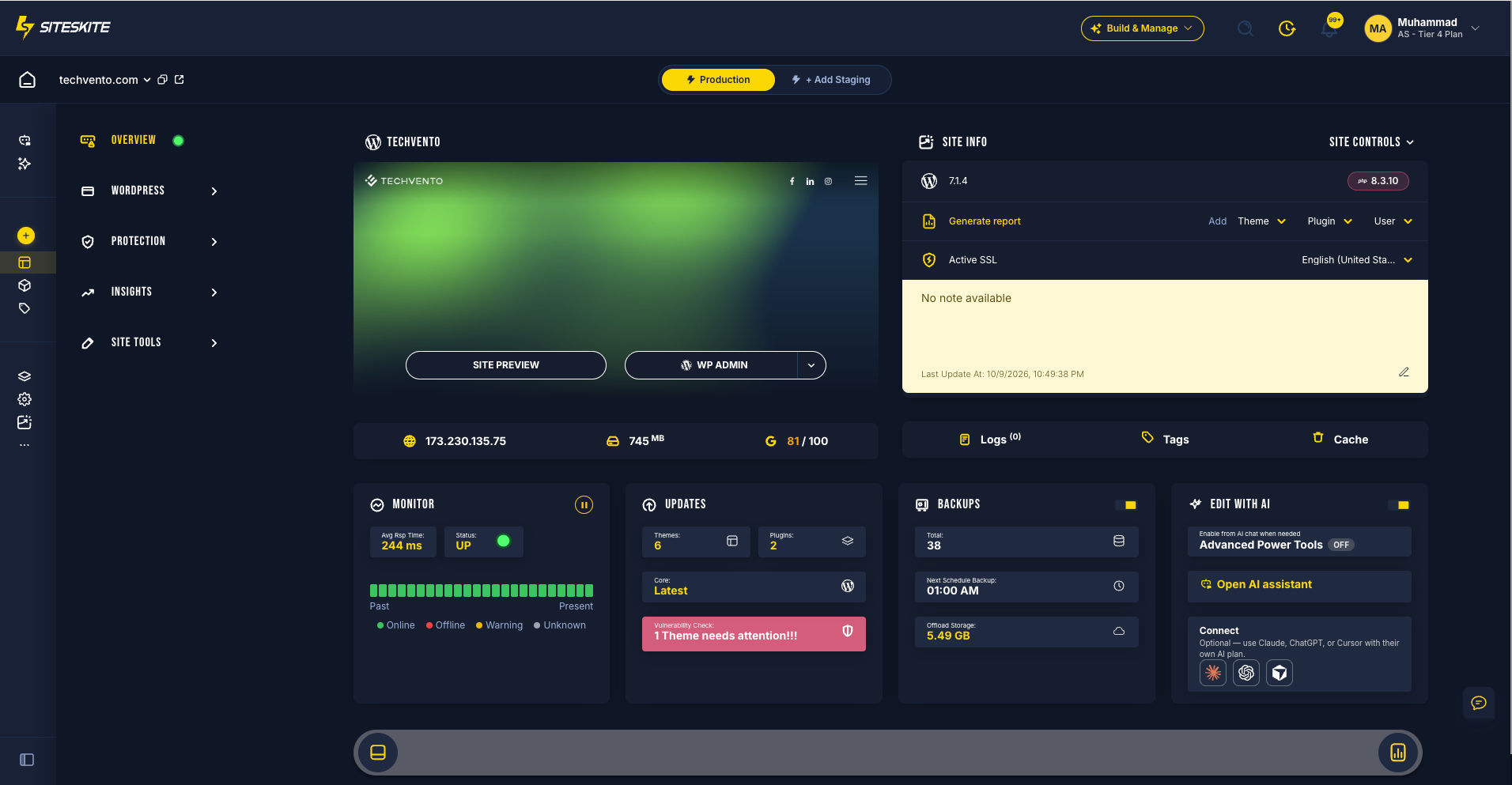
Find the Edit with AI card on the site overview (alongside tools like Backups)
Step 2: Turn Edit with AI on
Enable the Edit with AI toggle for that site
Confirm when prompted — the assistant will be allowed to change this site until you turn it off
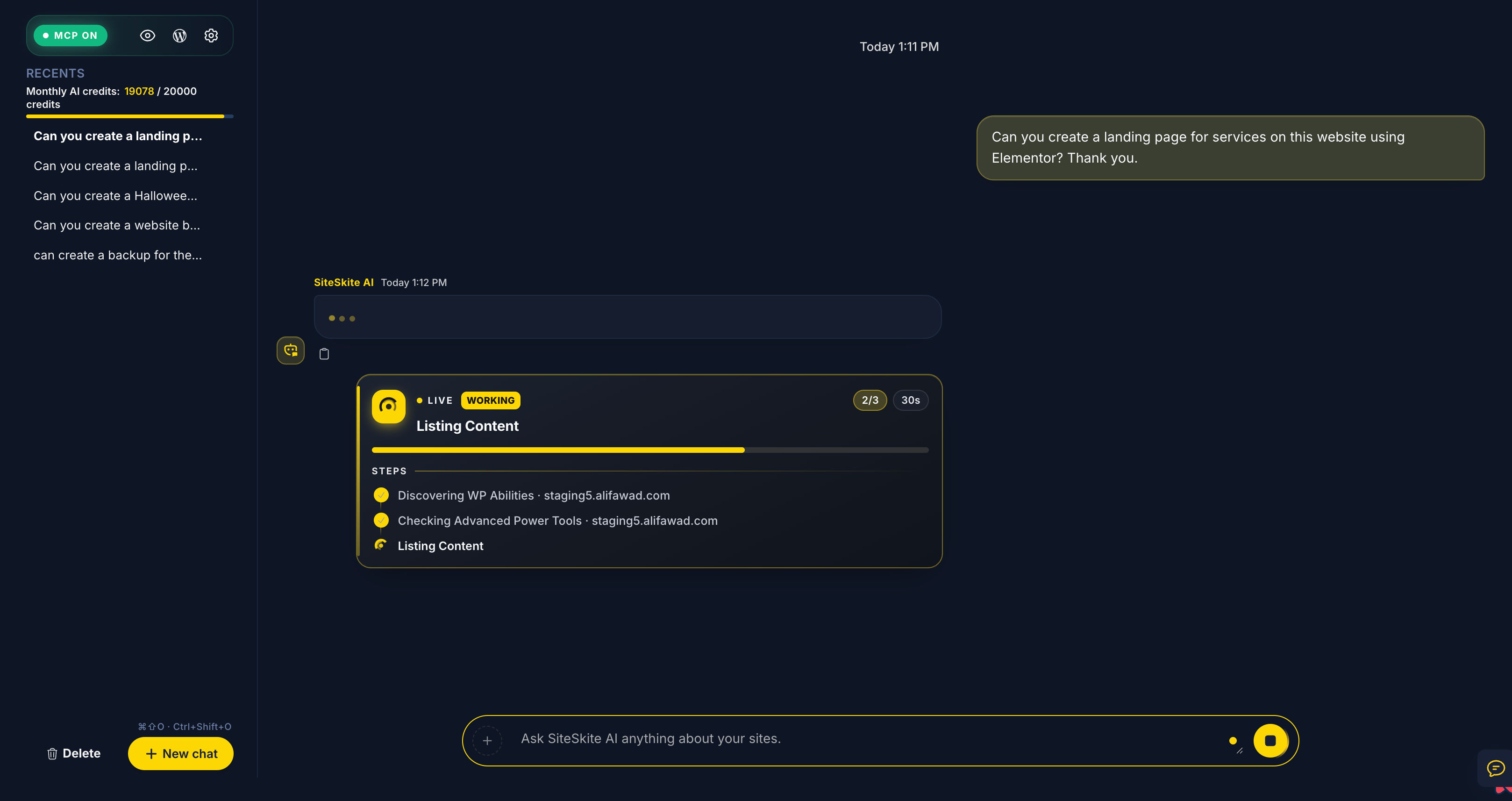
Step 3: Open AI Chat and select the site
Open AI Chat from the SiteSkite dashboard
Make sure the correct linked site is selected in the chat context
You should see that Edit with AI is active for that site
Step 4: Ask for a live change
Examples:
“Create a Contact page with a simple form”
“Rewrite the homepage hero headline to sound more confident”
“Add a FAQ section to the Services page”
Review what the assistant proposes, then let it apply the change on the live site.
Advanced Power Tools
Use Advanced Power Tools when you need broader site operations from chat
Keep them off for routine content edits if you want a tighter safety boundary
Safety tips
Prefer a recent backup before large structural changes
Turn Edit with AI off when you do not want the assistant to modify that site
Double-check the selected site in AI Chat before approving destructive actions
Use Sandbox / staging workflows when testing major redesigns
Related reading
Summary
Enable Edit with AI on a linked site, open AI Chat, select that site, and ask for live WordPress changes. Screenshots from the Dashboard Screenshots folder (site-overview-detail-view.png, ai-chat.png) can be added to this article in NeetoKB when you upload them.