
Use the seven-step report wizard to define a reusable profile, then send now or let SiteSkite deliver on a schedule.
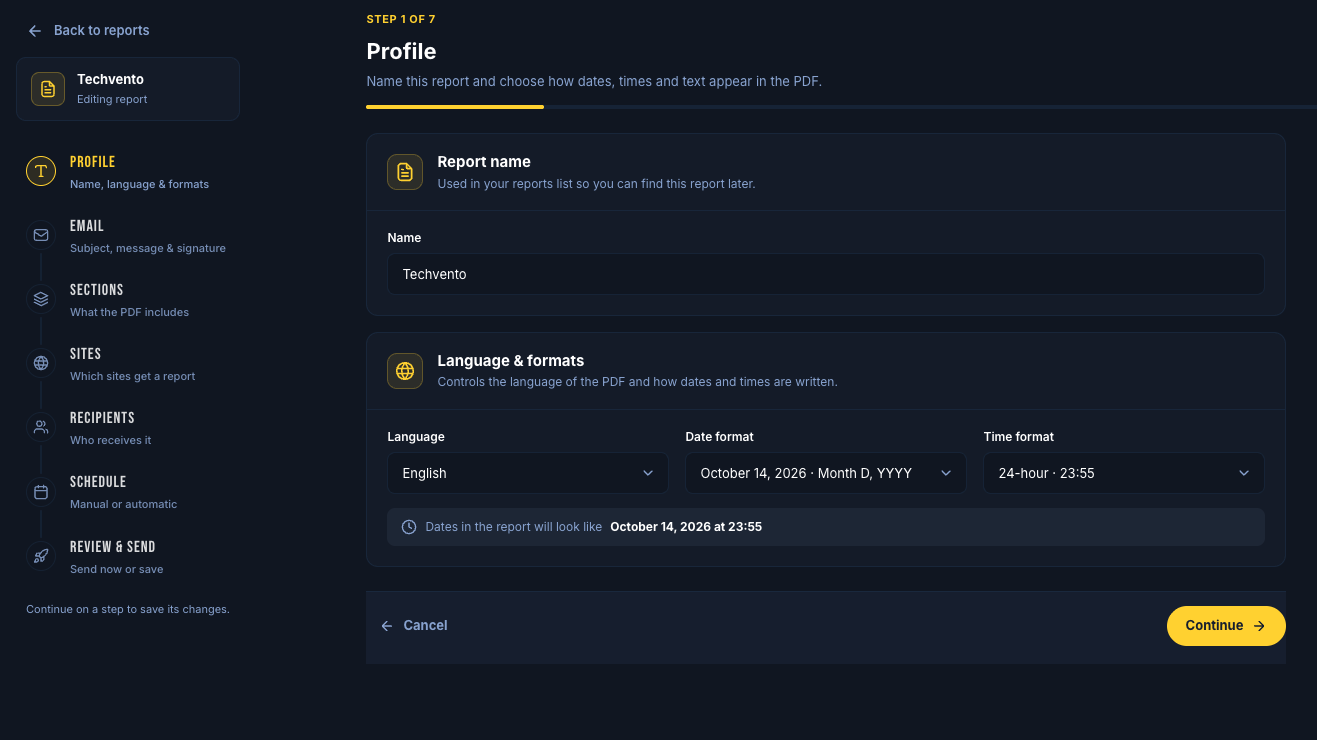
Start the wizard
Open Reports
Click Create
Steps: Profile → Template → Email → Sections → Sites → Recipients → Schedule → Review & send.
1. Profile
Report name (for example Monthly Maintenance)
Date format and 12/24-hour time
Language: English, Spanish, French, German, Italian, Dutch, or Turkish
2. Template
Start from a layout, then customise:
Custom layout (recommended)
Standard, Comprehensive, Minimal
Client summary or Technical audit
All sites — every built-in section and auto-assign all linked sites
3. Email
Sending name, subject, and body
Merge tags such as
[[Firstname]],[[Project Name]],[[Uptime Percentage]],[[Backup Count]],[[Plugin Updates Count]]Optional signature (name, title, company, phone, address, website, logo)
Optional From address on a verified custom domain
Send me a copy when you want the same PDF
4. Sections
Drag sections into order. Edit headings and intro text. Built-in options include Cover, Overview, Actions, Backups, Uptime, Performance, Summary, Security, Search Console, Analytics, and custom work sections. Search Console and Analytics are skipped for sites without Google connected.
5. Sites & 6. Recipients
Assign one site, many sites, or all linked sites
Add client emails; each selected site uses the same recipient list
7. Schedule
Manual — send with Send now from the list or wizard
Weekly — Sundays
Monthly — 1st of the month
Quarterly — start of each quarter
Review & send
Pick the reporting window (Last 7 / 14 / 30 / 90 days, or a custom 1–365 days). Then Send now, generate PDF only, or save the profile for the schedule. You can also set a PDF filename pattern with tokens like {domain}, {date}, and {report}.
From the Reports list
Send now / Generate PDF / Open PDF per site
Edit, View activity, or Delete a profile
Scheduled in the side menu shows upcoming sends