
Verify your agency domain so reports arrive from an address like reports@youragency.com—with your sender name, logo, and signature—instead of SiteSkite’s default.
Requirements
A plan with Reports
White label / custom domains access (otherwise reports still send from SiteSkite’s address)
Up to 10 domains on the account
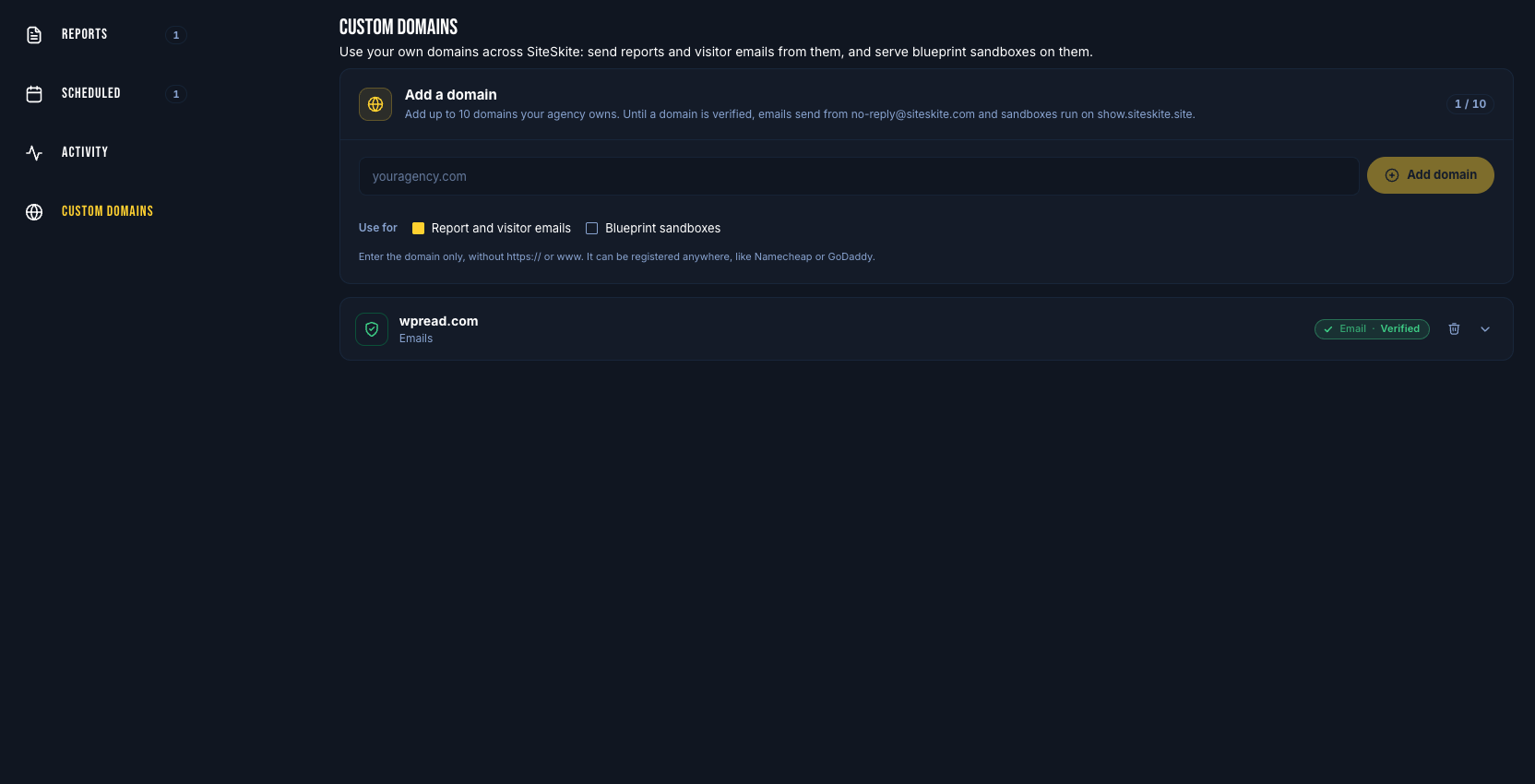
Add and verify a domain
Open Reports → Custom domains (or Custom Domains in Settings)
Add your domain
Complete DNS verification (TXT and any email-sending records shown in the UI)
Set up email sending (for example a local part like
reports)
Until a domain is verified, SiteSkite keeps using the default From address so a slow DNS change never blocks a report.
Use it on a report
Create or edit a report profile
In the Email step, choose the From address on your verified domain
Set sender name, subject, body, and signature as usual
Each report can use a different domain, so every client can hear from the brand they know.
Related branding
Cover logo and colours in the PDF
Email signature logo (PNG or JPG)
Same Custom Domains pool can also power blueprint login emails and sandbox hostnames when white label is enabled