
Reports turn the maintenance you run in SiteSkite into branded PDF summaries for clients and your team—updates, backups, uptime, security, performance, Search Console, Analytics, and the custom work automation can’t see.
Create a report profile once, assign sites and recipients, then send on demand or on a weekly, monthly, or quarterly schedule.
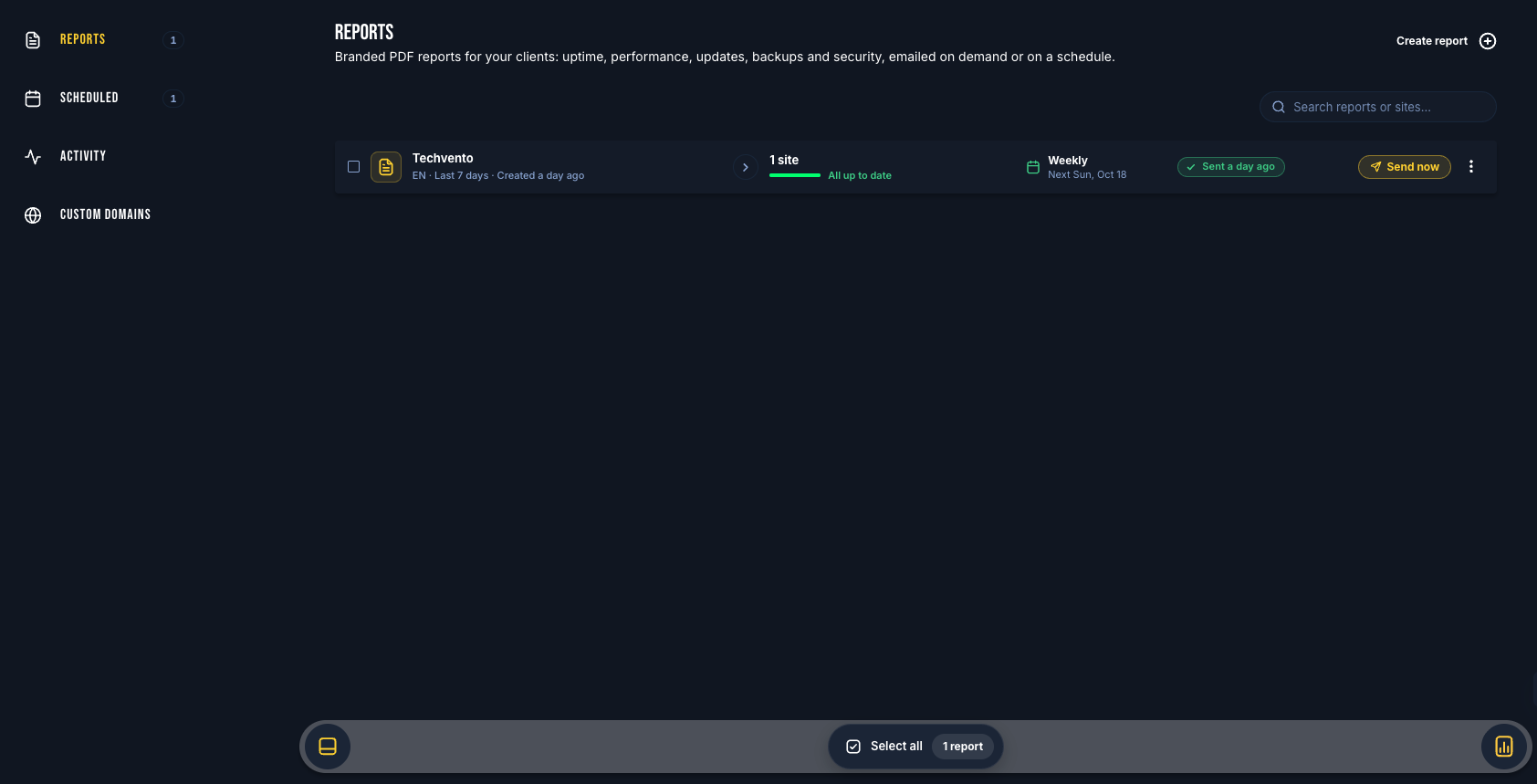
Where to open Reports
Log in to the SiteSkite Portal
Click Reports in the left sidebar
The Reports page has a side menu for Reports, Scheduled, Activity, and Custom domains. Reports require a plan that includes the Reports feature.
What a report profile includes
Name, language, and date/time formats
Layout template (Minimal through Comprehensive, or a custom section mix)
Email subject, body, signature, and optional “send me a copy”
PDF sections (reorderable, editable headings)
Assigned sites and recipients
Schedule: Manual, Weekly, Monthly, or Quarterly
Optional From address on your verified custom domain
What can go in the PDF
Cover — logo and brand colours
Overview, Summary, Actions
Backups, Uptime, Security
Performance (PageSpeed / Core Web Vitals)
Search Console and Analytics (skipped automatically if Google isn’t connected for that site)
Custom work — your own tasks with status, date, and time spent
Delivery at a glance
Weekly sends on Sunday · Monthly on the 1st · Quarterly at the start of the quarter
Generate PDF only, or email the PDF to recipients
Activity logs every run; retry failed sends; PDFs downloadable for 30 days (history kept longer)
Related guides
How to create and schedule a Report
Add custom work to Reports
Report Activity: track sends and retry failures
Send Reports from your custom domain